

Facebook's Audience Selector: Choose Who Sees a Post
The audience selector on Facebook is a drop-down menu button that allows you to choose who will see a post (aka Status Update) you share on Facebook. The standard setting for sharing a post on Facebook shares it with Friends, which includes all of your friends. Since there are some things you may want to share with only a few friends, the audience selector allows you some choices that might be useful.
Options for sharing
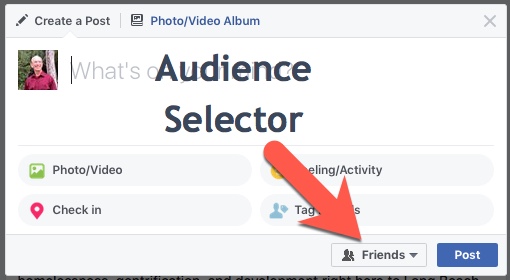
Facebook Audience Selector Desktop
|
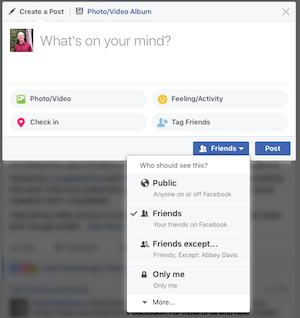
Facebook Audience Selector Desktop Options
|
Clicking or tapping on the audience selector button will display the options for choosing the audience (the people who will see the post). These are:
- Public - anyone on or off Facebook can see this
- Friends - all of your friends on Facebook can see this
- Only Me - only you can see this
- Custom - options for selecting which friends can see or not see, and select a list
When you choose an audience, the selection remains in place until you change it. So if you pick "friends," all your future posts would be shared with friends until you change it. Since most people tend to share things with friends on Facebook, this selection doesn't cause any problems. However, if you selected an audience of "public" for a post, then all future posts would be shared with the everyone until you changed the audience.
Friends and Only Me have some additional options. For a post with an audience of friends, it's possible to tag a friend in a post. A tag includes a link to that person's timeline and lets that person know they have been mentioned in a post. Facebook's privacy policy for people limits tagging so you can only tags friends, and you can only be tagged by friends.
When you share a post with friends and tag someone, their friends can also see the post. As a result, the audience expands to include not only your friends but the friends of the person you tagged. Tagging occurs when you mention a friend in a post or the picture included with a post and Facebook includes a link to that person.
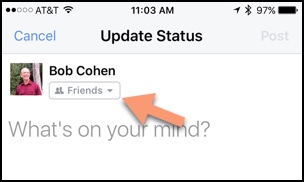
Facebook Mobile Audience Selector
|
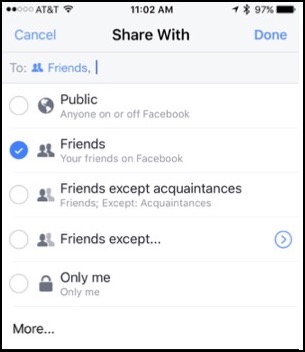
Facebook Mobile Audience Selector Options
|
Custom
The custom option includes features that allow you to fine-tune your post sharing to share a post with specific friends or to exclude specific friends from being able to view a post. Custom also is where you can share a post to a list of friends if you have a list setup.
A list is a selection of friends that's saved for reusing in posts. Facebook provides three lists for you to add friends to and custom lists that you can create. Let's see what Facebook's lists do first when it comes to audience selection.
The three lists that Facebook provides for you to use are Close Friends, Acquaintances and Restricted. Each list has certain features that make them useful, but none of them contain any friends until you add a friend to the list. A friend can't tell that you've added them to or removed them from a list, who's on the list is only visible to you. Let's go over how Facebook recommends you use each of these lists and then we'll look at the custom list option.
Close Friends
The Close Friends list is an easy way to collect the people with whom you want to share everything you post. By choosing Close Friends in the audience selector, only the friends in your Close Friends list can see your post. Of course, people in the close friends list will see anything you share with the Friends option in the audience selector, so this is an easy way to identify a group of friends who you share with the most.
One feature of the Close Friends list is that Facebook gives you a notification (an email and notification on your smartphone) whenever a close friend posts anything. You'll also see posts from your friends higher in your NewsFeed, but from my research on the web, no one seems to know exactly how Facebook manages the ranking.
Acquaintances
Adding a friend to the Acquaintances list is used for people you want to share fewer posts. Once you start adding friends to this list, the audience selector displays the option to share a post with “Friends except Acquaintances.” Using this option blocks the post from being shared with anyone you've put in the acquaintances list but allows all of your other friends to see the post. Most experts that follow Facebook believe that Facebook shows fewer posts from your acquaintances in the NewsFeed, but Facebook doesn't say this in their help information.
Restricted
The Restricted list is for people you might have added as a friend, but you just don't want to share anything with them because they aren't really a “friend,” they're just a contact you've made and connected with on Facebook. Friends added to the restricted list will only be able to see the posts that are public in the audience selector.
Custom
You create Custom lists on the desktop version of Facebook by selecting the Friends menu on the left column. You enter a name for the list and choose the friends you want to add to the list.
Smart Lists
Facebook also creates some lists automatically to help you segment your friends. If you indicated your workplace on your profile, Facebook creates a Work list based on friends you know who work at the same place. Other automatic lists are school, family, and city based on things you have in common with friends.
Creating and Managing Lists
The desktop and mobile (smartphone) versions of Facebook work a little differently when it comes to lists. You can add, delete and manage your lists on the desktop by selecting the Friends link in the list column, then hover over it until you see More, then click on More, then click on Create List.
On the desktop version, you manage the lists a friend is on from their profile page. Hover your mouse over the Friends button which should be checked and have a drop down arrow. Click on the button, and you'll see the lists to which you can add or remove your friend
The mobile Facebook app only has the option to add or remove a friend from a list and is done when you view the friend. When looking at a friend, tap on the Friends button, and you'll see the ‘Edit Friend Lists” option in the menu. Tap this, and you'll be able to choose the lists to add or remove them from by checking the list.
To my way of thinking
Sharing a post on Facebook and choosing who can see it is a personal choice. Some people like sharing more and some are more private. Facebook does offer you the features to be extremely selective in your sharing if you choose to take advantage of these options in using the audience selector tool when you create a post.
There are other options for how you manage what you share on Facebook that people use. Some people just assume that the content they post on Facebook is something they don't mind anyone seeing, more like a public persona. Other people are very restrictive and only connect with friends who are close friends or family.
Your approach is up to you and your personal style, but the options to control who sees your posts and who doesn't is in your grasp if you choose to use it.
Don't miss a single issue, sign-up now: