
Understanding How WiFi Networks Work
WiFi Basics
Most home and small office networks have similar setup and configurations. I'll be discussing issues related to the most common configurations, which usually consist of from 1 to 5 computers, a high-speed Internet connection, and some other shared devices like a network printer or storage device.
In the typical home and small office email is usually provided by the Internet Service or a web service and users get their email addresses. Web pages are hosted by an outsourced provider (usually the Internet Service or dedicated hosting service).
An Internet connection to the Internet Service Provider (ISP) usually consists of a broadband modem, a box usually provided by the ISP to enable the connection between the home or office network to the ISP's cable or phone system. This modem converts the signal for the home or office ethernet network to a signal that's used by the cable used by the phone or cable provider.
On one end of the modem is a phone or cable connector, on the other is the familiar Ethernet cable connector used to connect Ethernet network devices.
Ethernet was established as industry standard in the 1980's by Intel, Xerox, and Digital Equipment Corporation (since bought by Hewlett-Packard) and is a cabling and communications standard that manufacturers use for making their equipment and software compatible.
Connecting the single Internet connection to multiple PC's requires a Hub or Switch, which allows multiple Ethernet devices such as PC's, networked printers, and networked disk drives, wireless enabled laptops, game consoles, or other WiFi devices, and other hubs and routers to connect to the network.
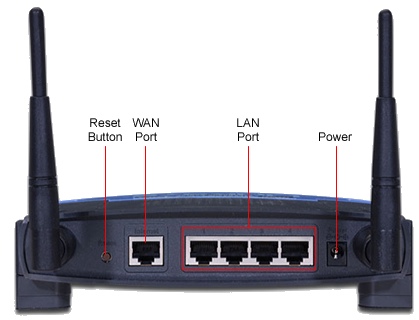
A combined router/hub is the most common way used to connect all the devices together into a single network. You can tell if your box is a combined router/hub if is has places (called ports) to connect more than one ethernet cable.
 Router Setup
The router is a device that literally routes network traffic to the correct location. Home and small office networks usually use a router which has a built-in hub or switch, which gives it more than one single Ethernet port and usually a wireless connection as well. If you received your router/hub from your ISP, is most likely included wireless networking capability.
The router is the one network device which connects all your other devices to the Internet, and to each other. Connecting a router to the Internet today is a fairly easy process, with configuration instructions provided by the Internet Service Provider so we won't go into the detail of the steps here.
If your ISP uses a setup procedure using a protocol called “PPPoE”, the router will get assigned an Internet Protocol (IP) address by the ISP. The newest routers automatically detect this kind of connection. In this case the router communicates with your ISP, you are asked during setup to enter your username and password supplied by the ISP, and the router and collects it's IP address and ll other necessary settings for connecting you to the Internet.
Most high-speed Internet connections to homes use what's called a "dynamic" IP address. Your router functions as an access point to your Internet provider (ISP) and your ISP needs to know how to send traffic to and from your location. An IP address is how the Internet identifies specific network devices, including routers and computers.IP addresses usually are viewed as a series of numbers and dots like 192.168.0.1..
With a dynamic IP address, your router will attempt to get an IP address assigned to it by checking in with your Internet provider. It's dynamic versus "fixed" becuase it can be reassigned and your router may get assigned a differnet IP address if it gets disconnected and reconnected if you shut if off and then turn it on. Don't worry, you'll still get to the Internet just fine.
After an IP address is assigned, your router is given some additional information that lets is route traffic from your home or business network to the Internet. This includes an IP address for what' called a “gateway,' and IP addresses for your DNS (Domain Name Servers, and with all of them setup your router can connect to the Internet.
Assigning IP Addresses to your Network
The default, or standard settings for almost every home and small office router, is set so that it automatically detects when a new network device is connected to one of the ports or by WiFi. The router automatically assigns an IP address to the device using Dynamic Host Communication Protocol or DHCP for short.
You can connect as many as 254 network devices to your network and your router automatically keeps track of what is connected and routing all the network traffic to and from each device and form each device to the Internet and back again.
Router Security
Out of the box, routers usually have a built-in firewall function which you don't need to change and is automatically setup for you when you plug in the router. There is rarely a conflict with the built-in firewall in Microsoft's operating systems so it's OK to lave both on all the time.
Defaults
Your router's settings can be changed once you connect your router to another PC. Most routers come with software installation and setup CD's which guide you step-by-step in the basic configuration, but don't require that you change any security settings to secure your router or wireless network (if your router came with a wireless capability). These default, or out of the box settings should be changed as soon as you connect your router to your network in order to secure your network from outside access.
Router Identifier
The router identifier is the name assigned to the router in the factory and each manufacturer typically uses it's own company name for ALL of their routers shipped out of the factory. That means that every Linksys router is named “linksys” and every Netgear router is named “netgear.”
You should change your router identifier to something unique from the factory default setting.
Administrator and Password Settings
The administrator and password settings are usually set to “admin” and “admin” at the factory. You need to change these settings to your own username and password. There are malicious software programs that scan IP addresses and try using the factory defaults for the username and password to see if they can access the router itself.
If you have a router that is both wired and wireless, the factory settings are set so that your router “broadcasts” it's presence and it will appear to anyone looking for a WiFi connection. Since it's broadcasting, if you haven't changed your username and password, someone could easily access your network by trying the factory defaults.
What's broadcast is the SSID identifier of the router, essentially it's name. Out of hte box all routers have an SSID that is usually the same as the manufacturer name. Linksys, Netgear, DLink and others are common. I recommend you change the setting to something you will recognize as your own network since you may have neighbors with WiFi networks that are within signal range.
Neighbors can access each others wireless networks by accident, since they might assume that the strongest signal they see is their own router, when it could just as likely be the one next door. If your router is a relatively recent model and has WiFi Protected Access (WPA), I recommend using that security method over the weaker, less secure Wireless Equivalent Privacy (WEP). In addition to using either WPA or WEP, you can add a MAC address control (explained later) to further enhance your security.WPA also has a new WPA2 security upgrade and if that's available use that option for even better security.
If you run a network with only the default security, without WEP or WPA turned on, any of your neighbors can immediately log on to your network and use your Internet connection. Of the three security measures described below, you should use WPA first, if available, then WEP, and then MAC Address Access Control.
An exception to this is with some of the new routers installed by telephone and cable companies. They have their SSID assigned to them and have security setup, usually with WPA, and the SSID and WPA security key are marked on the router. You can use these and be secure.
Wireless Equivalent Privacy (WEP)
Wired Equivalent Privacy (WEP) is a security protocol for wireless networks that encrypts transmitted data. However, WEP was an early attempt to secure wireless networks, and better security is now available such as DES, VPN, and WPA. WEP has three settings: Off (no security), 64-bit (weak security), 128-bit (a bit better security). WEP is not difficult to crack, and using it reduces performance slightly.
To turn on WEP you log into your router control and typically the settings are located under the wireless settings options. Selecting WEP is usually an option with a checkbox or selection button and you are required to enter a number (usually 10 digits long) for each computer you want to access your wireless network and the router returns a key that you use when configuring the wireless network settings on your PC.
WiFi Protected Access (WPA and WPA2)
If available, WiFi Protected Access (WPA) is the better and stronger security setting for wireless security. Usually visible on the same wireless settings option screen as WEP, you select WPA with a checkbox or radio button selection. After selecting WPA, you enter a “passphrase” which is used as a password on each PC you use to connect to your wireless router. Like any password, choose one with a combination of letters and numbers to make it more secure. When you configure your PC's wireless network settings, you use the passphrase to authenticate the PC on the wireless network.
When viewing your wireless network from your PC network settings, you will see, using wither WEP or WPA, that your network is now a “secure” network and unavailable for anyone to access.
MAC Address Access Control
In addition to either WEP or WPA, you can control which specific PC's and network devices are allowed to connect to your wireless network. Each Ethernet device manufactured is given a semi-unique address, called the Media Address Code which is required by the Ethernet protocol and to work on any network. It is technically possible for a determined hacker to bypass this control but does add an additional deterrent for security.
Usually available on the wireless settings menu of your router's configuration controls, in the same location as the WEP and WPA settings, you can usually turn on address control with either a checkbox or radio button setting. To use it, have all your PC's and network devices (printers, storage devicves, etc) connected to the network so they can appeat in the Access Control List. You would then select each one you want to enable to connect to your network and apply or save the settings.
This will not completely prevent a determined hacker from accessing your network but will make it more difficult for anyone to connect to your router and add an additional measure of security.
Not a subscriber? Don't miss a single issue: