

Schedule and Invite in Zoom
There are two ways to start meetings in Zoom, Meet Now (also called Instant Meeting) or Scheduled Meetings. Each has its purpose, but most individual users use the Scheduled Meetings way, so I'll focus on that one more. Once scheduled, Zoom creates an invitation that contains a link that a participant clicks on to join the meeting. The Host has to get the meeting invitation to everyone, just like a party invitation.
The Meeting ID
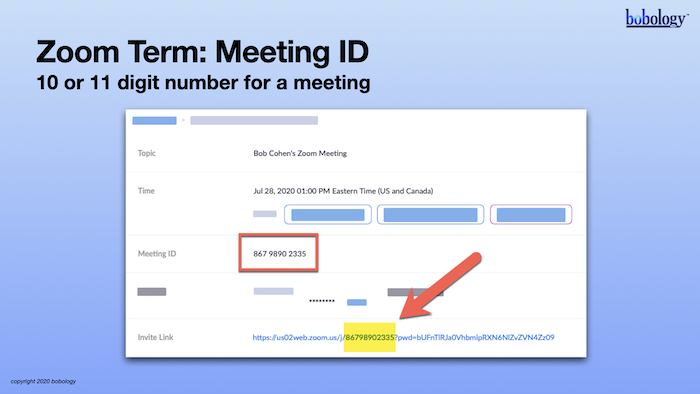
Every Zoom meeting uses a meeting ID. The meeting ID is a number assigned to any session on Zoom. It appears in meeting invitations and is a 10 or 11 digit number for any meeting held on Zoom. It's included in the “join now” link, but you may never have paid much attention.
Knowing about the Meeting ID is important because the two ways to invite people to Zoom use the Meeting ID differently. One method uses a permanent Meeting ID that doesn't change while the other creates a unique Meeting ID for a meeting. Knowing how to arrange meetings in Zoom will help you avoid security risks and make your events run better.
With two types of meetings, it's useful to know what happens with each one. First, let's look at the Meet Now or Instant Meeting feature.
Meet Now (Instant Meeting)
Zoom is a communications tool used by individuals as well as organizations. Individuals create an account with Zoom using their email, while people that work for organizations that use Zoom for internal communications use their work email. Within an organization, people typically want to meet with other individuals whenever the need arises.
Zoom offers a video chat service that makes a face-to-face meeting possible, and the Personal Meeting Room is a virtual meeting room reserved for your use at any time. You don't have to schedule a meeting in advance when using your Personal Meeting Room, and it's a standard feature in all accounts.
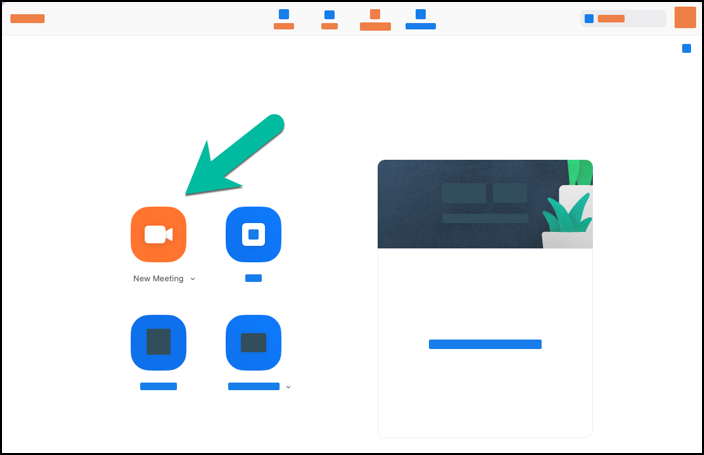
The Meet Now/Instant Meeting feature is designed to start a meeting at any time, like during a phone call or while on a chat session. It saves the need to schedule a meeting. When you host an Instant Meeting, you use your Personal Meeting Room. However, the Personal Meeting Room uses a feature called your Personal ID.
Your Personal Meeting ID in Zoom is a ten-digit number that is assigned to you by Zoom. You can change it in settings. You share your Personal ID in the invitation link when you invite someone. The risky part of Instant Meetings is that once someone sees your Personal Meeting ID, they can keep using it.
If someone has your Personal ID, they can join any future Instant Meetings you start. It's like having an open door to a wedding party and no one checking the invitation list. Anyone knowing about the wedding could crash it unless someone is checking the guest list. If it's an open party, fine, but if you want to restrict who can attend, you'd wish to invitations, and RSVP's for a guest list.
While sharing a Zoom Personal ID can be a privacy risk, if used wisely, it's not. For example, if you have close family members or a member of a team in an organization with a phone directory, allowing other team members to join quickly can make ad-hoc video chats easier. Just keep in mind that once you share your Personal Meeting ID, anyone who knows it could join your Instant Meetings.
You can read more at Zoom's help pages here:
Zoom now has improved security features, which include options for a one-time meeting ID and to require a password for an Instant Meeting. The typical individual user is going to be more likely to use the Scheduled Meetings method. So let's move on to Scheduled Meetings.
Scheduled Meetings
Scheduled meetings are the most common way to arrange one. Scheduling involves setting a topic, arranging a date, time, duration, and place for a meeting, then sending invitations to whoever you want to join. There are several ways to schedule a meeting in Zoom and all work, but one has more options available. Users of paid accounts have additional options.
Zoom typically installs it's desktop client app when a user creates an account. Using the desktop app to schedule a meeting is simple and has the most commonly used features. The Zoom app for Windows and Macs are virtually identical. Zoom mobile apps for iPhones, iPads, and Android also include the capacity to schedule a meeting.
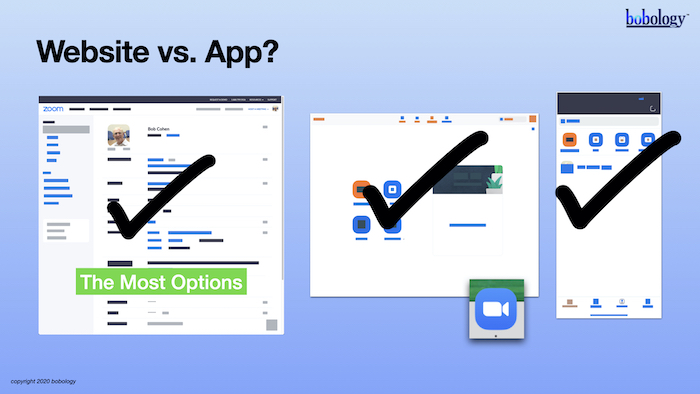
Last but not least, you can schedule a meeting using the Zoom website (also referred to as the web portal) at zoom.us and signing in with your account. Any scheduled meeting is visible in your account on the web or in an app regardless of how you planned it.
To schedule a meeting using the desktop or mobile app, click or tap on open the Schedule icon. On the website, click Meetings, then click on Schedule a New Meeting. A form appears for you to complete. Licensed (paid) users will see more options than Basic (free) plan users. However, for most meetings, you only have to fill out a few things.
The most important things to enter are:
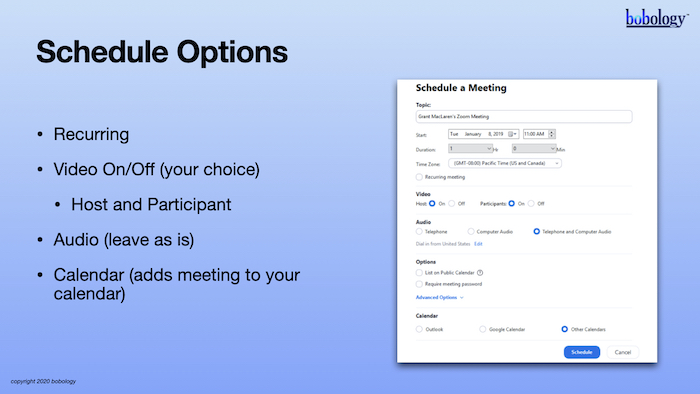
- The topic or title - the name for your meeting
- Start Date and Start Time
- Duration, or End Time (these are a little different on the web, desktop, or mobile)
- Time Zone (this should be set to your local time, if not select it)
- Calendar - optional, to add the event to your Calendar select your software from the list in Calendar, this adds the meeting to your Calendar.
Note: All of this information will appear in the invitation, which you can edit it later if necessary.
You can customize the scheduling:
- Recurring meeting - use for a regularly scheduled meeting, like a weekly meeting with the same topic, and time of day
- Video for Host and Participants - use to set the video on or off when joining a meeting.
- Audio - OK to leave both telephone or computer audio checked, so people can join the audio portion of the meeting by phone if needed. Leaving both selected will include the Meeting ID link for participants and phone numbers for dial-in participants that may only have a phone.
Some other options:
- Enable join before Host - allows participants to join before the Host. When the first participant joins the meeting timer starts, and Basic (free) accounts have a time limit.
- Meeting ID - leave Generate Automatically checked
- Password - leave Require Meeting Password checked
- Enable Waiting Room - leave as checked
- When using the Waiting Room, all participants see a virtual lobby called the Waiting Room until the Host admits them. If you know everyone you've invited, there's not much risk in turning this off. Leaving it on gives you a chance to prepare until admitting anyone.
- Mute participants on entry - your choice
- Automatically Record the Meeting - Licensed users can record in the Cloud, Basic users can only record locally
Licensed Users can choose to record the meeting in the Zoom cloud and require registration. Recording in the Zoom cloud allows a host to share a link for others to watch or download the recording. Registration creates an invitation link that requires people to register with their name and email address. Then a meeting invitation is sent out by Zoom. With the registration option, you can export the names and email addresses, and send out a meeting reminder.
Inviting People
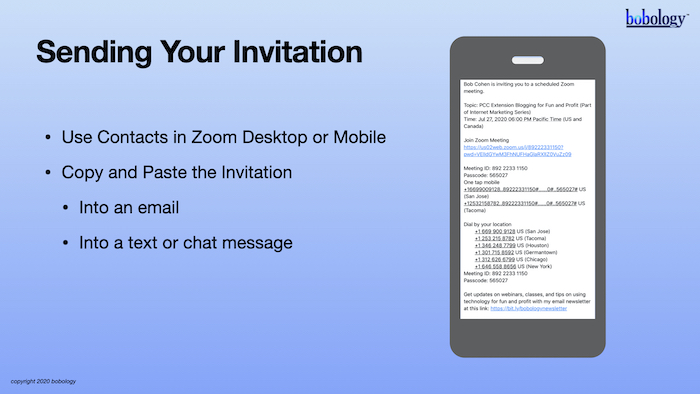
Once you click Schedule Meeting, a meeting information page appears. To invite people, copy the Invite Link, paste it in an email, and send it using your favorite email application. If you want to send an invitation with the date, time, topic, link, and phone numbers for dial-in access, click the Copy Invitation link, a new window appears with the invitation. Click Copy Invitation, then paste it in your message to invitees.
Inviting during a meeting
If you're in a meeting and need to invite someone, click the Participants icon, then click Invite at the bottom of the panel. Click on "email" to send out an invitation or click Contacts to send an invite to any contacts you have in your Zoom contact list. Organizations that use Zoom as a team have contacts listed from the same Zoom team account.
It's possible to add contacts using your phone's contact list in the Zoom mobile app or add one from the desktop client using the Contacts icon.
Zoom Outlook, Chrome, and Firefox Add-Ons
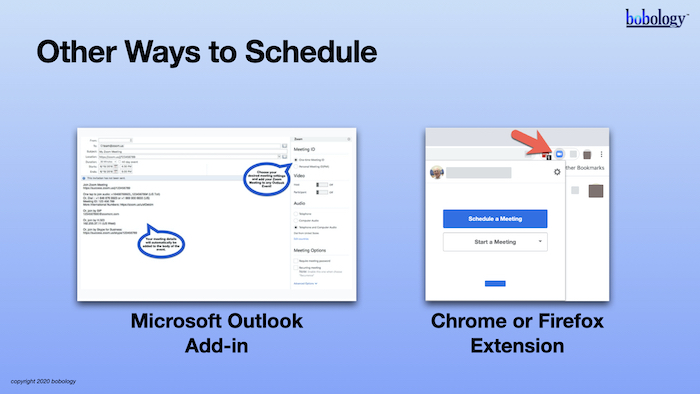
In addition to using the website, desktop client, or mobile app to schedule a meeting, Zoom has software for Microsoft Outlook, Chrome, and Firefox. The Outlook add-in makes it easy to plan and start a session without the need to leave the Outlook app. Chrome or Firefox extensions add-ons allow you to begin and schedule a meeting from your browser and add any future meetings to your Google calendar.
If you use Google Calendar or Microsoft Outlook (365) and schedule or join Zoom more than once or twice a week, installing these options can save you time and make it easier to schedule and start meetings.
You can download the Microsoft Outlook Add-in, Chrome, and Firefox extensions at this link:
Let's wrap up
Zoom has a lot of capabilities, and you may only use it for a few. Once you've learned how to schedule and send out invitations, it will become a natural and easy-to-use process. Licensed users have options when scheduling meetings and can use them to make their meetings more professional.
Zoom Help:
Inviting others to join a meeting