
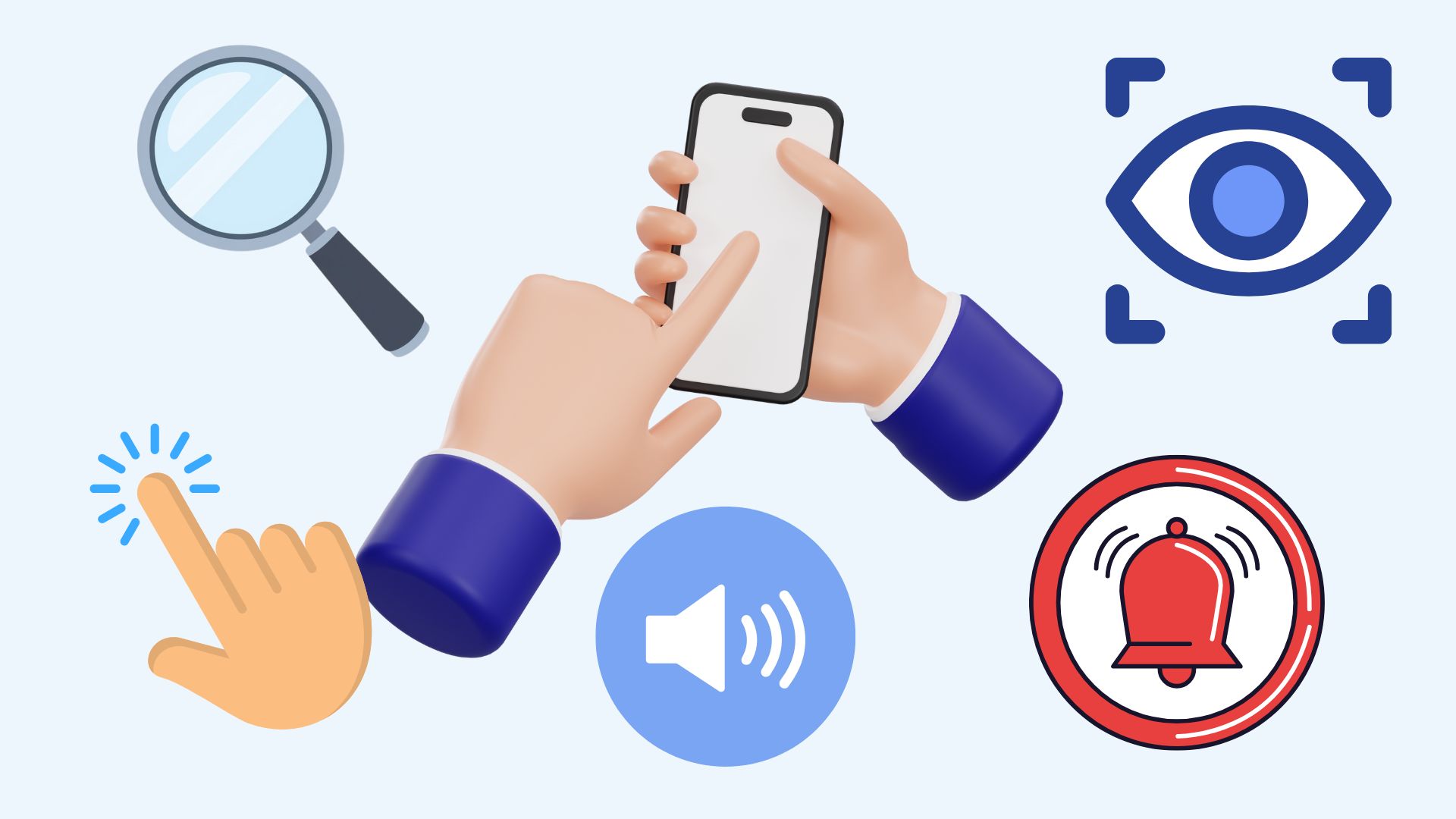
5 Accessibility Features Everyone Should Set Up
Most people think accessibility features are only for people with disabilities. In reality, they're some of the most useful settings on your phone — especially as our eyes, hearing, and dexterity change over time.
If you're setting up a new smartphone (or helping someone else), these are the five most commonly used and most helpful accessibility features to know about.
I've included links to the iPhone, Samsung, and Google Android support websites for more information. If you have a specific Android smartphone model, I recommend visiting the manufacturer's website.
1. Larger Text & Display Size
(One of the most used accessibility features)
If text feels small or tiring to read, your phone can make it larger — and clearer.
-
iPhone: You can increase text size beyond the standard settings using Accessibility.
-
Android: You can increase both the font size and the display size, which also makes buttons and icons larger.
Why it matters:
This reduces eye strain and makes everyday tasks such as texting, emailing, and reading more comfortable.
2. Screen Reader (VoiceOver on iPhone / TalkBack on Android)
A screen reader reads what's on the screen out loud and helps you navigate without needing to see everything clearly.
-
iPhone: VoiceOver reads buttons, text, and menus aloud.
-
Android: TalkBack does the same using spoken feedback and vibrations.
Why it matters:
Essential for people with low vision — and surprisingly helpful when multitasking or learning how a new app works.
3. Flash Alerts for Notifications
(Includes the new screen-flash alert on iPhone)
If you miss notifications because you don't hear them, your phone can alert you visually.
-
iPhone: Can flash the camera light and (newer versions) briefly flash the entire screen when notifications arrive.
-
Android: Can flash the camera light or the screen for alerts.
Why it matters:
Great for people who are hard of hearing, in noisy environments, or who keep their phone on silent.
4. Magnification & Zoom
Magnification lets you zoom in on part of the screen — like a built-in magnifying glass.
-
iPhone: Zoom with a simple gesture and move around the screen.
-
Android: Use magnification shortcuts to enlarge text, images, or entire screens.
Why it matters:
Perfect for reading fine print, menus, labels, or photos without straining your eyes.
5. Assistive Menus & Easier Touch Controls
If gestures, buttons, or hand movements are complex, these features simplify control.
-
iPhone: AssistiveTouch adds an on-screen button for everyday actions (Home, volume, screenshots, etc.)
-
Android: The Assistant Menu provides a large, simple on-screen button for phone controls. (Home, recents, screenshots, back, etc.)
Why it matters:
Makes the phone easier to use for people with arthritis, tremors, or limited mobility — and for anyone who prefers fewer gestures.
How to Find Accessibility Settings
On most smartphones, tablets, and computers, you can usually find accessibility features in the Settings app. Look for a gear-shaped icon, then scroll until you see accessibility. Settings on both Apple and Android smartphones also let you search for specific accessibility features so take advantage of the search function.
On iPhone (Current iOS)
-
Open Settings
-
Tap Accessibility
Apple overview guide:
https://support.apple.com/guide/iphone/get-started-with-accessibility-features-iph3e2e4367/ios
On Android (Current Versions)
-
Open Settings
-
Tap Accessibility
(May be under Advanced or Additional Settings, depending on the phone)
Android accessibility overview:
https://support.google.com/accessibility/android
Dedicated Accessibility Support
Apple, Samsung, Google, and most smartphone makers have dedicated Accessibility webpages, chat, and phone numbers you can use for support. Here are their links:
Apple Accessibility: https://support.apple.com/en-us/111749
Samsung Accessibility: https://www.samsung.com/us/sustainability/accessibility/mobile/
Google Android: https://support.google.com/accessibility/answer/7641084?hl=en&;ref_topic=6004807&sjid=16265063725717981380-NC&visit_id=639014203211668474-3311200752&rd=1
Wrap-Up
Accessibility features aren't about “special needs” — they're about making technology work better for real people. Even turning on just one or two of these settings can make a smartphone easier, calmer, and more enjoyable to use every day.
FREE MEMBERSHIP NOW AVAILABLE
Join my new Tech Explorer Community for weekly Tech Topics, AI Topics, Q&A, and more.